Creating a certificate request
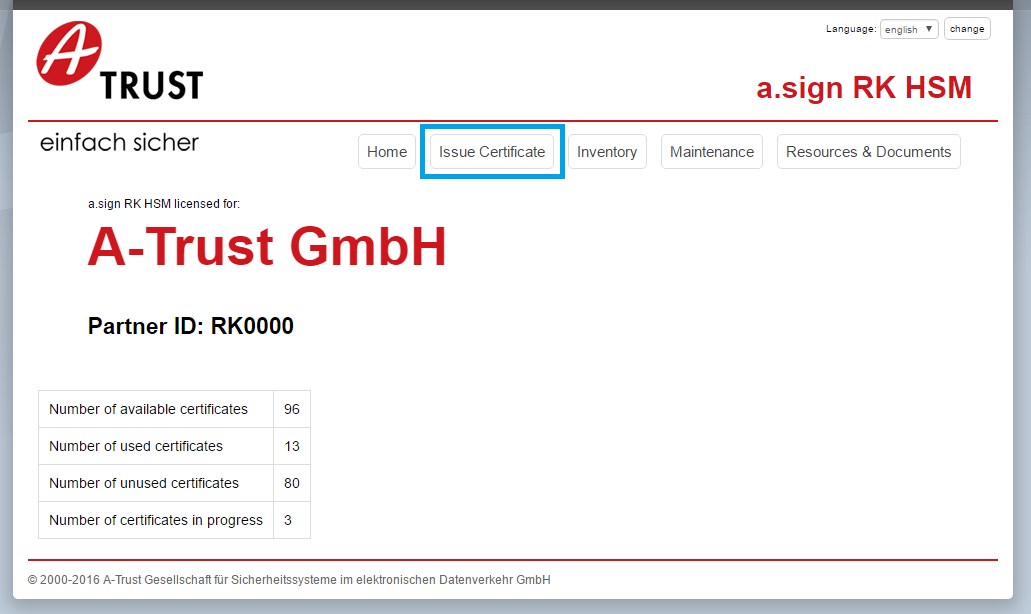
Open the a.sign RK HSM website by entering its IP address in the web browser. Select the menu item Issue Certificates. The figure below shows this function highlighted in blue.
On the following page the data which will appear in the a.sign RK HSM certificate is entered. The certificate type is selected from the dropdown menu Classification Key. The choices available are: Value-Added Tax Identification Number (VAT-ID), Global Location Number (GLN), and Tax Number. Additionally, the adjacent text field must be filled with the value corresponding to the type. This field
simple validation checks to ensure that the format is correct. After entering the E-Mail address the certificate request can be generated via the button Issue Certificate (manually).
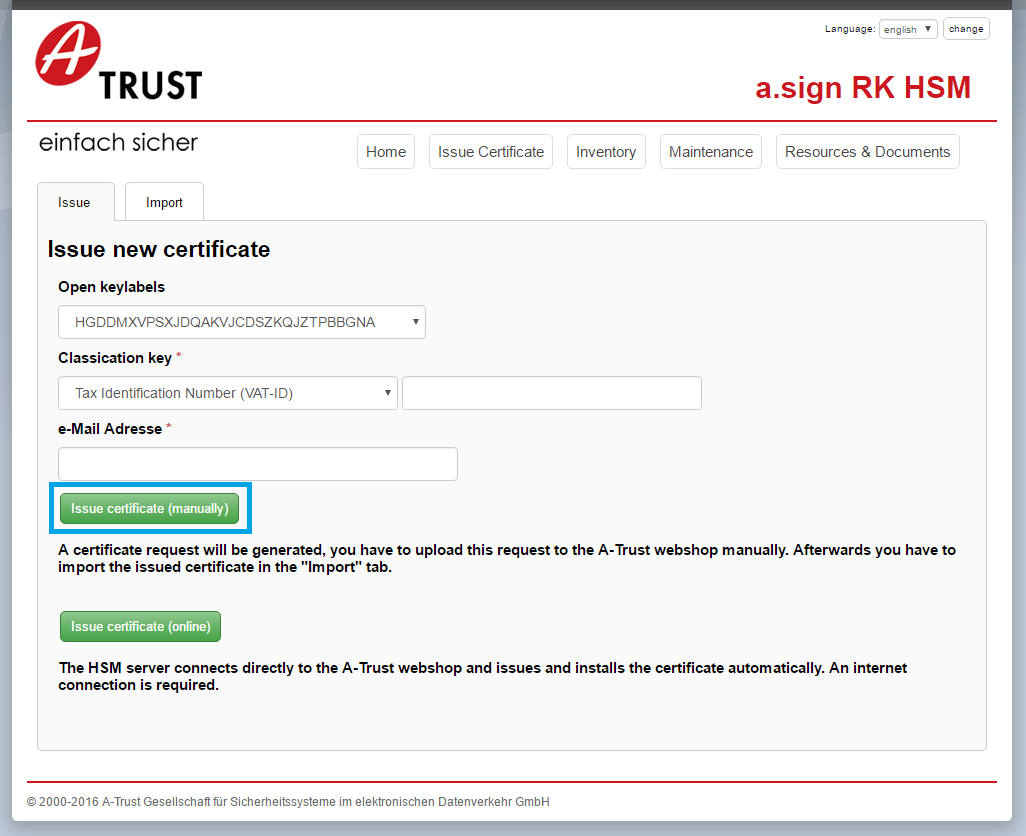
The value in the field keylabel (here HGDDMX…BGNA) is used to select the key to sign with over the REST interface.
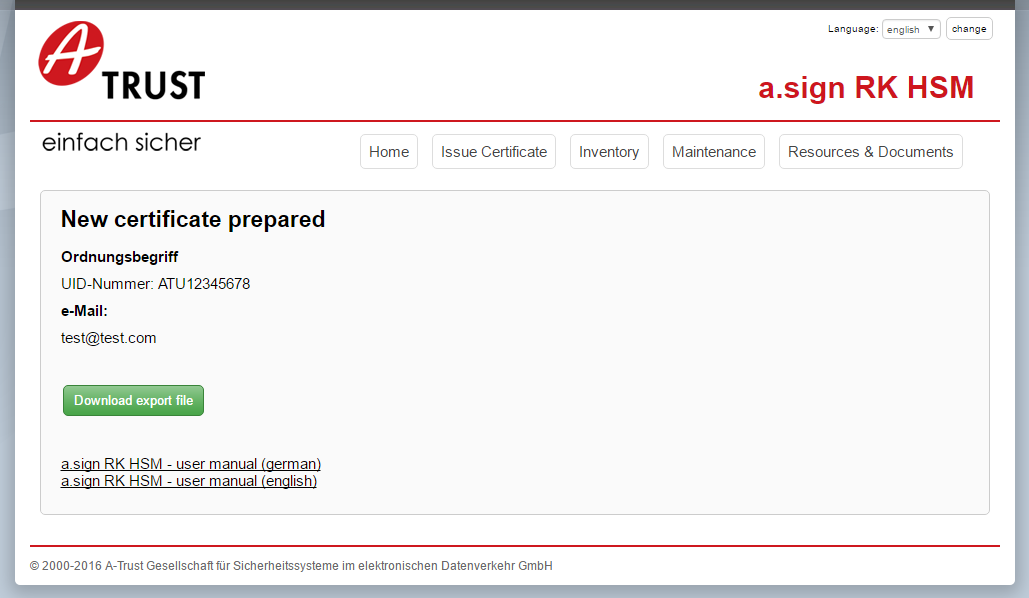
On the next page you see a summary of the certificate request and can download it. Click on Donwload export file to download the certificate request