Create a new account (automatically)
If your a.sign RK HSM has internet access, certificates can be issued using the following simplified process.
Navigate to the a.sign RK HSM website by entering the IP address of your HSM in your web browser – this may have the form http://192.168.1.1/ – where of course you must enter the IP address of your HSM.
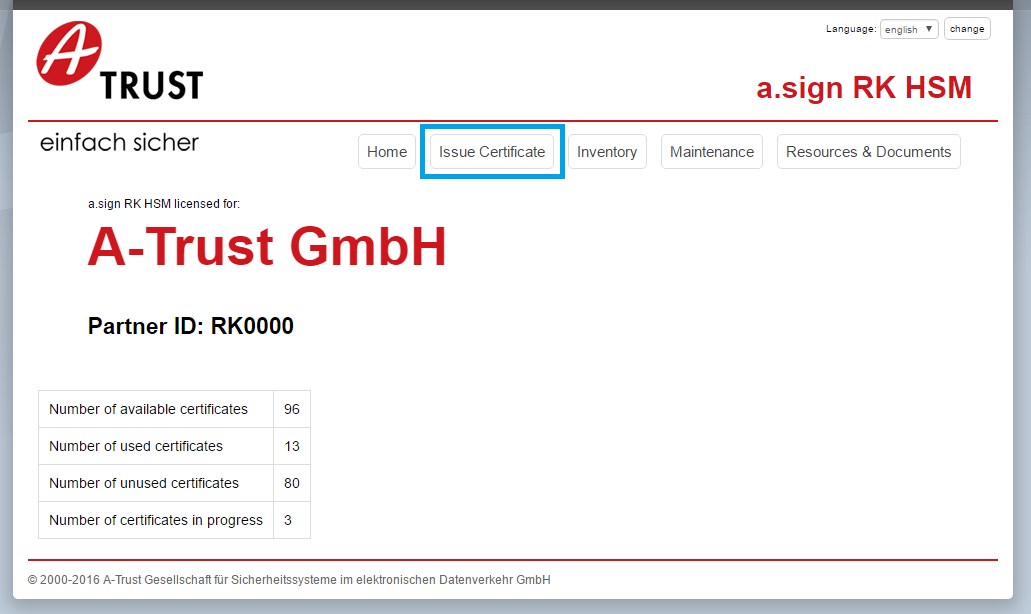
Select the menu item Issue Certificate. This is marked in blue in the following screenshot.
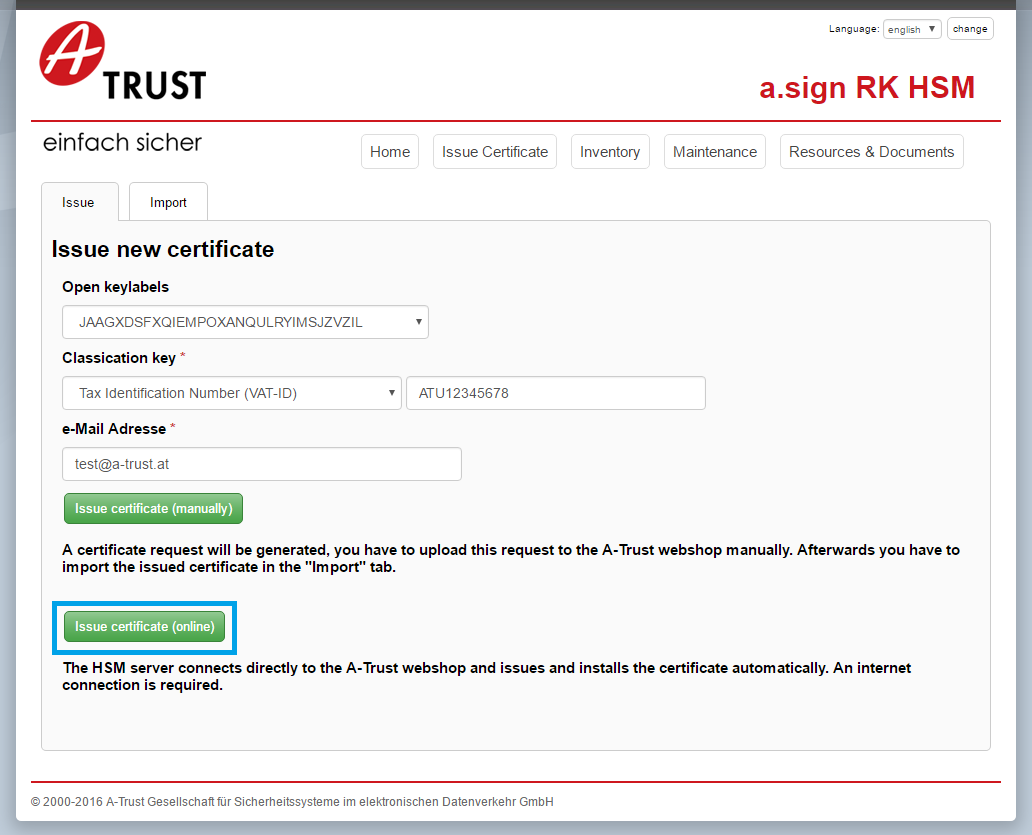
On the following page the data which will appear in the a.sign RK HSM certificate is entered. The certificate type is selected from the dropdown menu Classification Key. The choices available are: Value-Added Tax Identification Number (VAT-ID), Global Location Number (GLN), and Tax Number. Additionally, the adjacent text field must be filled with the value corresponding to the type. This field simple validation checks to ensure that the format is correct.
After entering the E-Mail address the certificate request can be generated via the button Issue certificate (online).
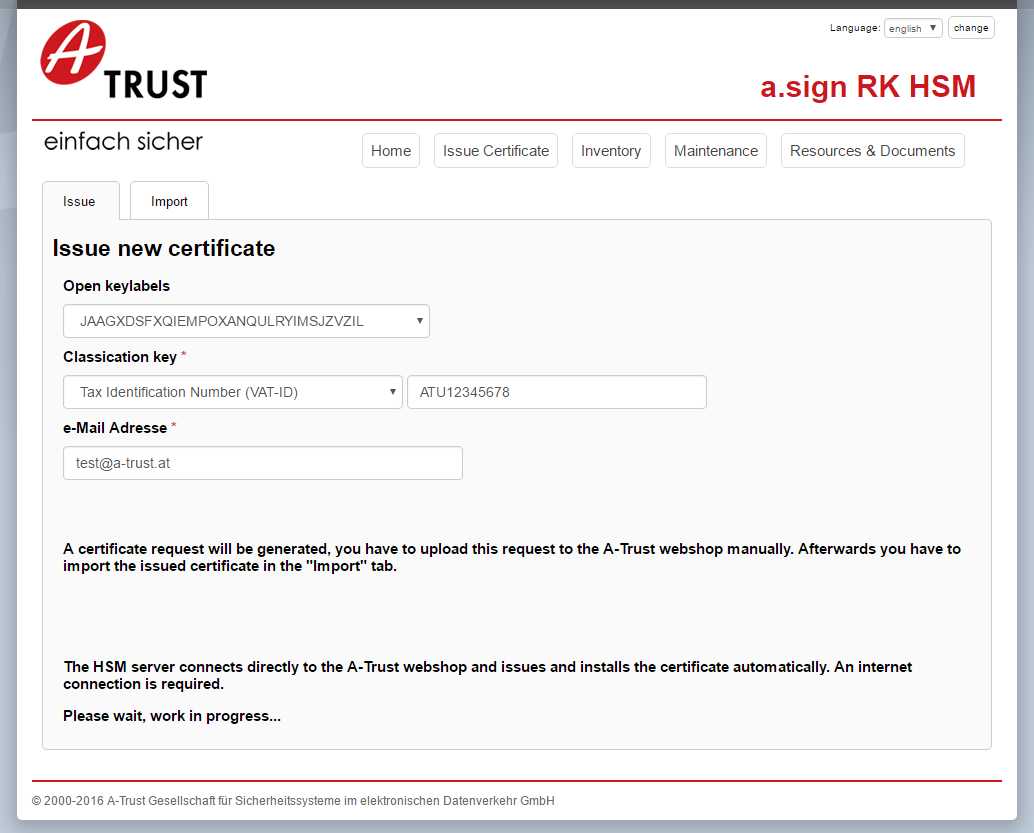
The screen now shows the message *Please wait, work in progress... The processing can take a number of seconds
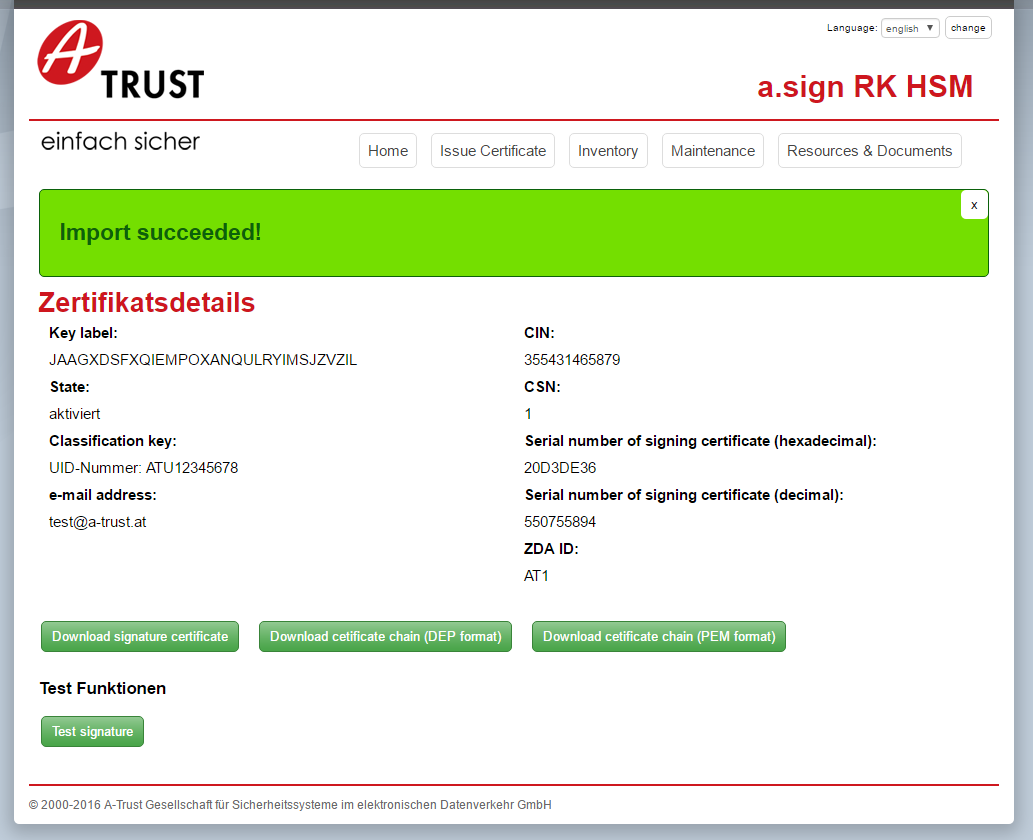
Finally the certificate details screen is shown. The certificate has now been issued and the account can be used.