User interface
After defining the number of signees and the documents to sign via API call, a URL with a valid session will be returned which can be called to place the digital signature stamps.
Overview
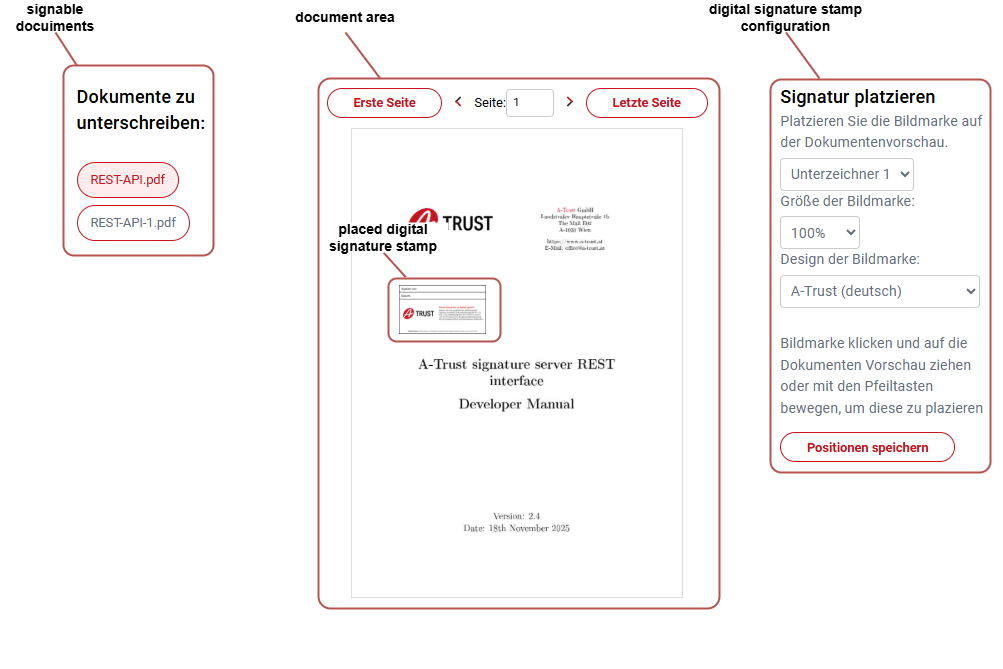
As shown in the figure above the user interface is diveded into three major parts. On the furthest left of the user interface you can find the signable documents which will described in section Signable documents. The central part contains the document area and is further explained in section Document area. The configuration of the placeable digital signature stamps is located on furthest right part of the interface and is further described in section Digital signature stamp design
Signable documents
This section describes the behavior of the signable documents area. The during session creation provided documents and shown in the user interface can be in one of three predefined states.
State: unmodified - Color: gray

State: all signature stamps placed - Color: green

State: one or more signature stamps missing - Color: red

When the user calls the previously created url all documents will initialy be shown and marked as gray. As soon as the user clicks on one of the shown documents, it will change its state to one or more signature stamps missing. When all digital signature stamps got placed in the currently chosen document, the state changes to all signature stamps placed. The currently chosen document will be displayed by marking the document as a filled box.
Document area
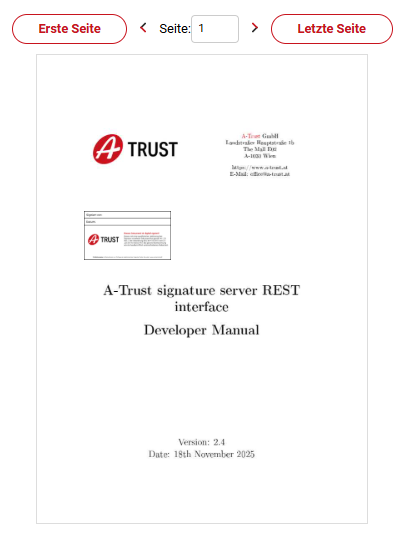
The document area (figure below), is the central part of the Place2Sign. The uppermost part of it contains navigational buttons, which allow to jump to the first and last page of the chosen document. Additionaly it is possible to directly navgate to a chosen page. Once the desired page has been reached, the digital siganture stamp can be placed in the desired area using drag and drop from the configuration area shown in figure below.
Digital signature stamp configuration
This section of the manual outlines the different configuration options available for the digital signature stamp.
Multiple signees
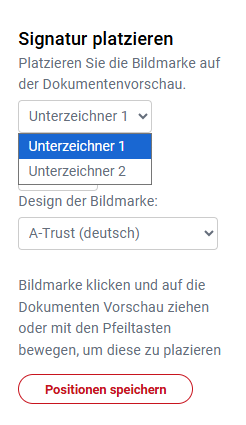
For each in the dropdown available signees, as seen in figure below, which had been defined during the initial session creation, a digital signature stamp has to be placed on each document.
Digital signature stamp size
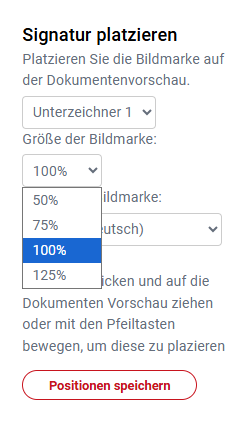
The size of each digital signature stamp can be changed to one of following sizes.
- 50%
- 75%
- 100%
- 125%
Error prompt
If not all digital signature stamps got placed on all documents, the error prompt below will appear at the bottom of the document area.
