Create a Certificate Signing Request
Navigate to:
Certificates (Local Computer) > Personal > Certificates
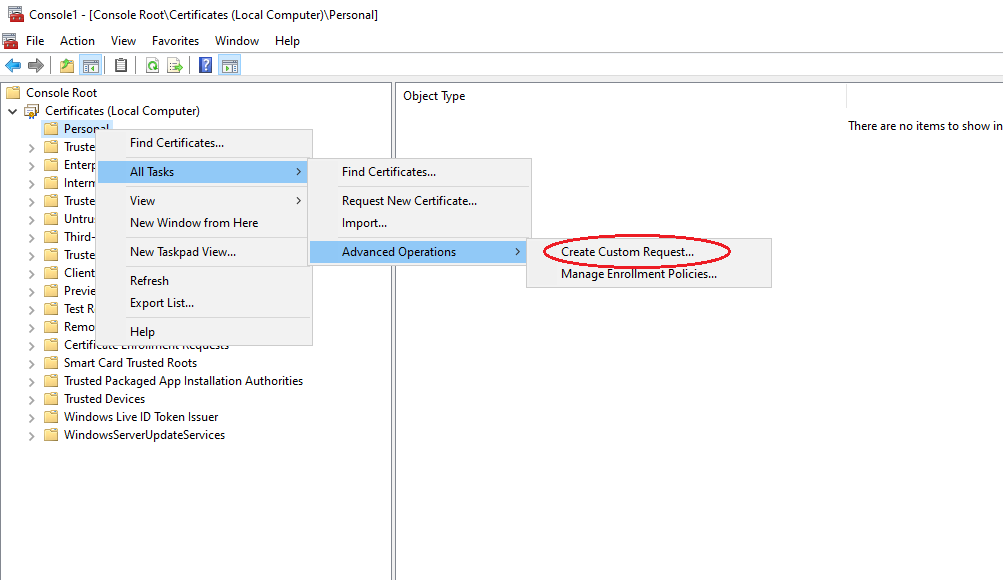
Right-click Certificates and select:
All Tasks > Advanced Operations > Create Custom Request
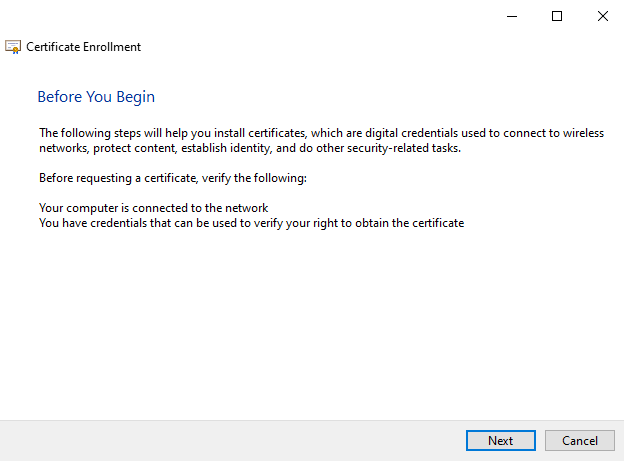
The Certificate Enrollment wizard opens, click Next.
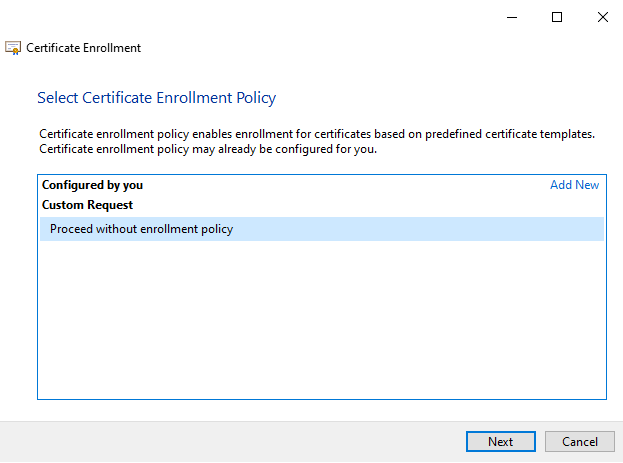
On the Select Certificate Enrollment Policy page, select:
Proceed without enrollment policy
Click Next.
Select the Request Template
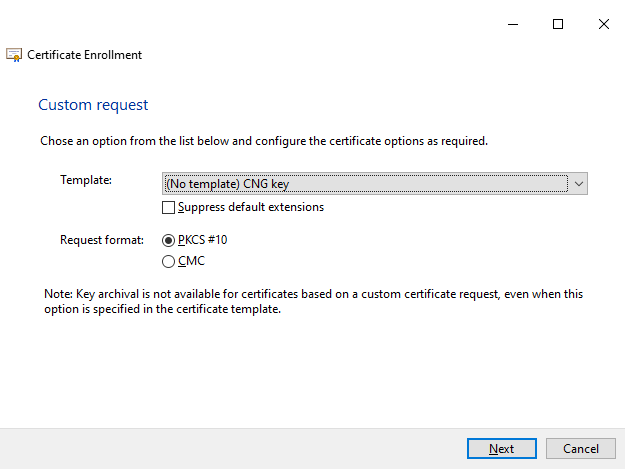
On the Custom Request page, select:
Template: (No template) CNG key
For the request format, select:
PKCS #10
Click Next.
Configure Certificate Properties
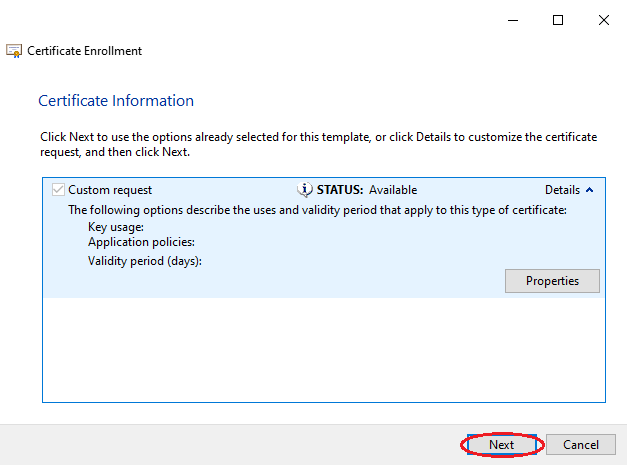
On the Certificate Information page, expand Details and click: Properties
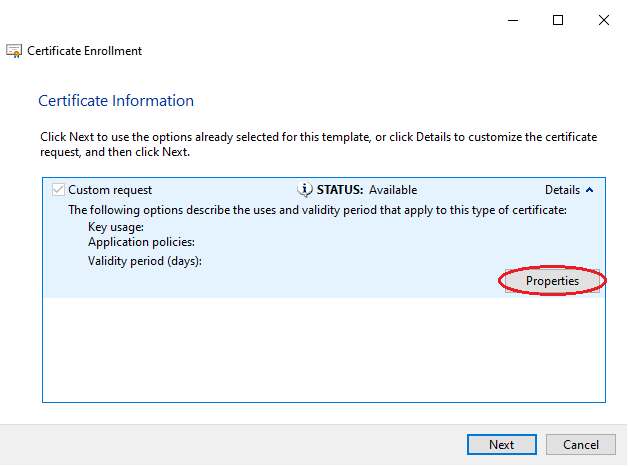
The Certificate Properties dialog opens.

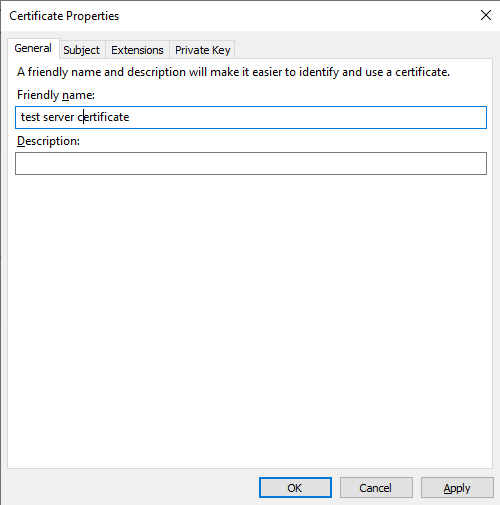
General
Optionally specify a friendly name and description.
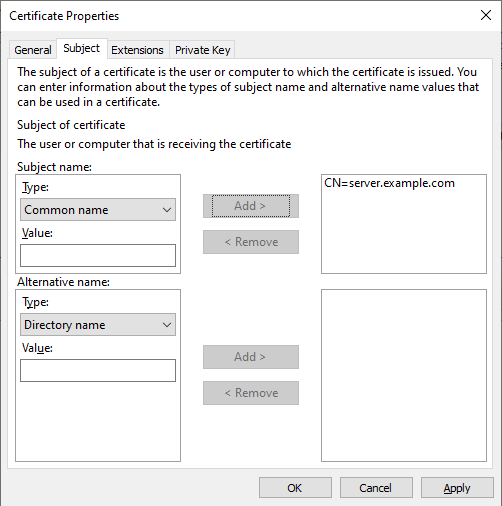
Subject
Under Subject name, add the required Common name attributes.
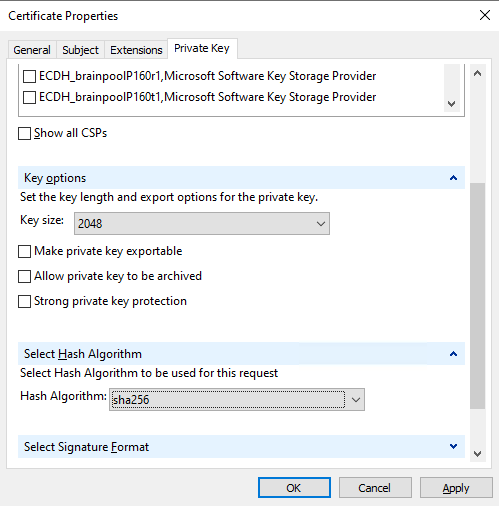
Private Key
Expand the Cryptographic Service Provider, than the Key options and Select Hash Algorithm options.
Under Key options the Key size should be at least 2048 bit.
Under Select Hash Algorithm select sha256.
If you want to use the private key outside of the Microsoft Crypto Store or you later need to be exported as a PFX/P12 file, also check the Make private key exportable checkbox.
If this option is not enabled, Windows may prevent the private key from being exported later.
After configuring the required options, click OK.
Save the Certificate Request
Click Next.
Choose a location and filename for the certificate request and click Finish.
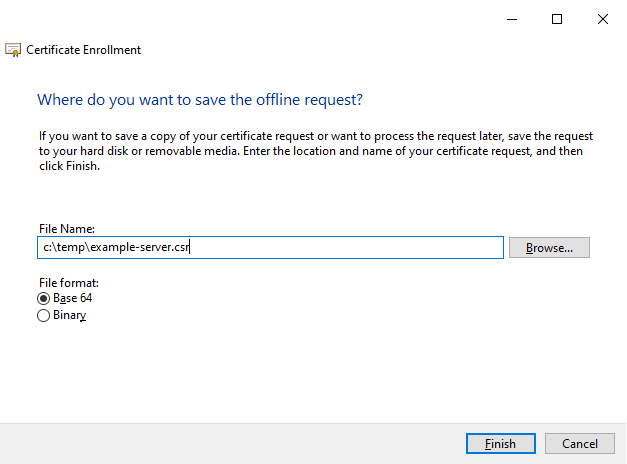
The resulting .req file contains the PKCS#10 Certificate Signing Request.
The request can now be submitted to the Certificate Authority.
The private key is not included as a separate file. It remains in the Windows certificate store on the computer where the request was created.